Save a recording you own to Files
Share your recording from its source app and save a copy to Files. The exact share menu depends on the app and iOS version. These device-specific steps still require verification on a physical current-generation iPhone; they are not presented as a completed device test.
Choose the saved file
Open the M4A converter in Safari, tap Choose file and select the recording in Files. An M4A recording with AAC LC or ALAC audio is supported. Protected recordings and files outside the published limits are not accepted.
Convert, then save your MP3
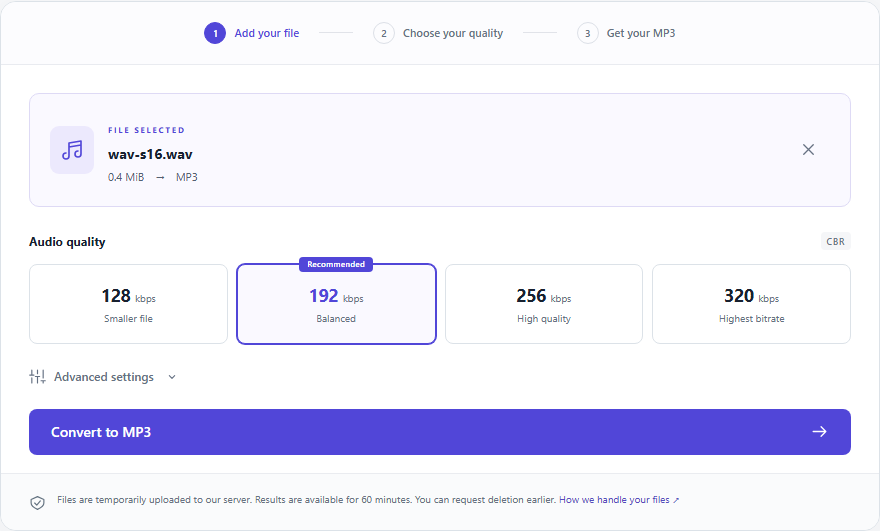
Leave 192 kbps selected or change the bitrate, then tap Convert to MP3. Keep the tab open while uploading. When verification finishes, tap Download MP3 and use Safari’s download or share controls to save the result. Download behavior must also be checked on your iOS version.
THE COMPLETE GUIDE
From a phone recording to a saved MP3 you can find
The important steps are exporting a file, choosing the matching input tool and checking the downloaded copy. Menus depend on your recording app and iOS version.
A recording in an app must become an accessible file
A browser file picker selects files available through the device’s file interface; it does not browse every app’s private library. In Voice Memos or your recording app, use its share/export controls to make a file available, then select that saved copy. Apple’s sharing instructions are a useful starting reference, while exact labels can vary by version.
| File or concept | Relationship | What it means |
|---|---|---|
| Recording app export | makes available | a file for the browser picker |
| M4A source | is converted into | a separately downloaded MP3 copy |
Choose by the exported format, not the phone name
Use M4A to MP3 when your file is an M4A containing AAC LC or ALAC. Use WAV for a compatible PCM export and MOV for a supported video recording. A file made on an iPhone does not automatically share the same container or codec as another iPhone file. Check the export details and the published limits before uploading.
Continue with a practical guide
Keep upload and processing separate in your expectations
Let the file finish uploading on a stable connection before leaving the workflow. After completion is committed, the queue and processing states describe the server’s work. Returning to the same browser session can restore that task, but an interrupted upload may need a new start. Do not create duplicate conversions because a mobile connection is slow.
Confirm where the browser saved the MP3
Use the download controls shown by your browser and open the saved file through Files or the chosen destination. A ready page is not the same as a local copy. Check the filename, actual file presence and playback from storage. The server result lasts one hour, so finish saving before depending on it for a message or delivery.
- Open the downloaded MP3 independently of this page.
- Try the recipient app before deleting the server result.
- Retain the original recording for another export if needed.
Make the upload decision before sharing a private recording
This converter uploads and temporarily processes the file on a server. If a work policy or personal requirement says the recording must remain on the phone, choose an offline workflow. Deleting the temporary server files does not delete a copy you already downloaded or sent to someone else. Those copies are separate from this job.
Continue with a practical guide
Check the workflow on your actual iOS version
These instructions describe the file workflow and refer to Apple’s sharing documentation. Desktop browser tests do not establish physical iPhone behavior. The exact picker, download destination, background handling and preview controls must be checked on the device and iOS version you use. A browser preview limitation can still leave a valid downloadable MP3.