Choose your file
Upload an audio or video file from your device. We check the actual media before converting.
YOUR AUDIO. YOUR WAY.
Save the sound from your WebM recording as MP3. The video track is left out of the result.
or choose an audio or video file from your device
One file · Up to 75 MiB · 30 minutes
Auto preserves mono and stereo. Surround audio is mixed down to stereo.
A higher bitrate cannot restore detail missing from the original.
Files are temporarily uploaded to our server. Results are available for 60 minutes. You can request deletion earlier. How we handle your files
Every result is checked and decoded before it becomes available.
Four bitrates. Mono or stereo. No promises of magically improving your original audio.
Results expire automatically. Request earlier deletion directly from your conversion.
WebM with Opus or Vorbis audio is supported. A screen recording without an audio track cannot be repaired by conversion.
See all supported formats →A few clicks. A compatible audio file. Nothing to install.
Upload an audio or video file from your device. We check the actual media before converting.
Use the balanced 192 kbps setting, or choose the bitrate and channels that fit your needs.
Preview your verified MP3, save it to your device, and delete the server copy whenever you are ready.
Extract audio from a video, or make an MP3 copy of your recording.
Practical answers, without the audio jargon.
THE COMPLETE GUIDE
Screen recordings and browser exports need the right audio track before they can become MP3. Separate file packaging, microphone capture and output quality when diagnosing the result.
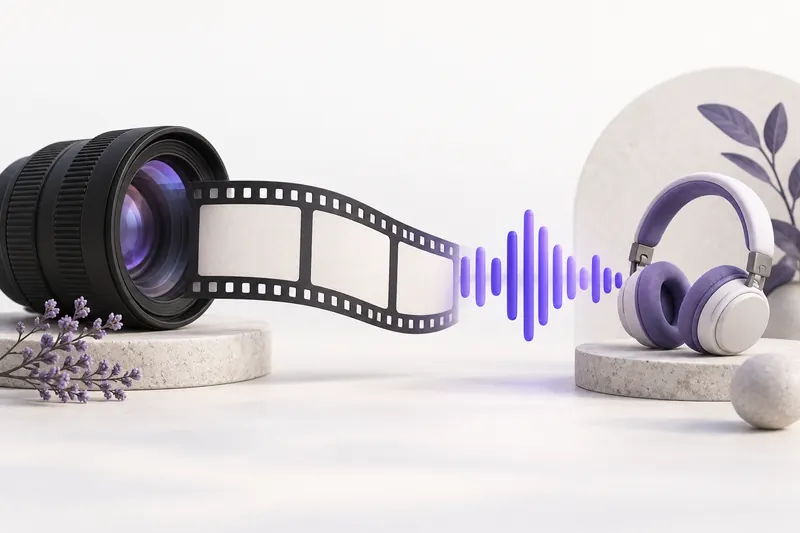
This converter accepts WebM with Opus or Vorbis audio. A video track can be present, but it is not included in the MP3. The first audio track is decoded and re-encoded with the selected settings. A supported container alone is insufficient when the file contains no audio or uses an unsupported audio codec.
| File or concept | Relationship | What it means |
|---|---|---|
| WebM | contains in supported recordings | Opus or Vorbis audio |
| MP3 output | leaves out | the video track |
Before converting, play the source and check system sound and your voice separately. Recording permissions or capture options can leave one of them absent. Conversion does not recreate a voice the browser never captured. If a fresh recording is possible, verify its audio with a short test before recording the full session.
Continue with a practical guide
Use the complete downloaded WebM file rather than a temporary recording link or unfinished export. Check that it plays through the ending locally. The tool accepts one local file and does not connect to meeting accounts or import URLs. Keep a copy of the export before uploading it for temporary processing.
A spoken explanation may remain useful as audio, while cursor movements, diagrams and on-screen code may not. Make an MP3 when the spoken information can stand alone. Keep the WebM for visual references and do not distribute someone else’s meeting or lesson unless you have permission to share it.
Continue with a practical guide
Start at 192 kbps unless the destination gives you a different requirement. Compare 128 kbps when compactness matters, or 256/320 kbps when you can allocate more space. These are constant-bitrate MP3 settings. A higher number cannot recover detail already absent from the input, and your original remains the best reference for judging the copy.
Ten minutes at 192 kbps is approximately 14.4 MB of audio payload. Ten minutes at 320 kbps is about 24 MB. Mono versus stereo does not halve that estimate at the same total bitrate. Select channels for the recording, then check the actual duration, channel count and size shown with the finished result.
Continue with a practical guide
Listen to the beginning, a demanding middle passage and the ending. Check that the expected speaker or music is present and try the MP3 in its intended app. The converter verifies readable output, but your listening check establishes whether the file suits your task. Source tags and artwork are removed; organize the downloaded copy locally if you need them.
Your upload is processed temporarily on a server. The result is available for one hour; download it before relying on the temporary link. Delete files requests earlier cleanup and closes access. Wait for confirmed deletion, and retain your own source separately because a temporary conversion result is not a backup or an editing archive.
Continue with a practical guide
WebM with Opus or Vorbis audio is supported. A screen recording without an audio track cannot be repaired by conversion.
No. A higher output bitrate cannot recover detail lost in the source. MP3 is always lossy. Keep WAV, FLAC or ALAC originals if you need an archival copy.
Files are temporarily processed on a server. The original is cleaned up after success and the MP3 expires after one hour. Delete files closes access and requests earlier cleanup; wait for the confirmed deletion status.